
A quick walkthrough of what happens after we email you a quote: verifying it's you, reviewing the proposal, and signing electronically. It takes a couple of minutes, start to finish.
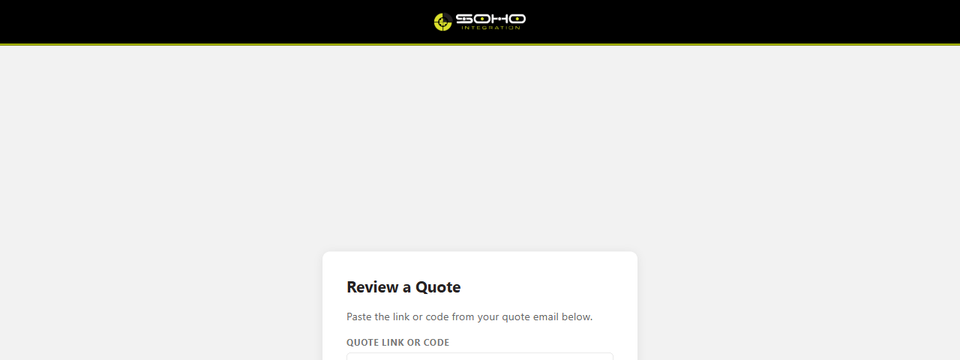
We'll email you a link to approve.sohomsp.net. Click it to go straight to your quote. If the link doesn't work, this page lets you paste it in (or the 64-character code from the email) instead.
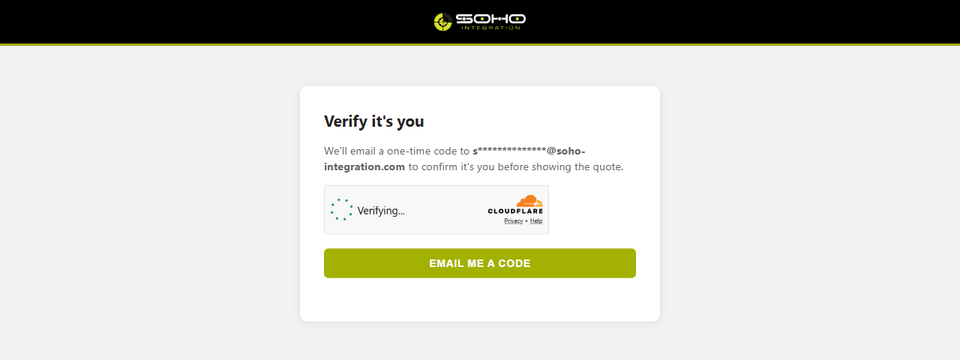
Before showing anything, we confirm you're the right person. Click Email me a code and we'll send a 6-digit one-time code to the email address already on file for your quote: never one you type in yourself.
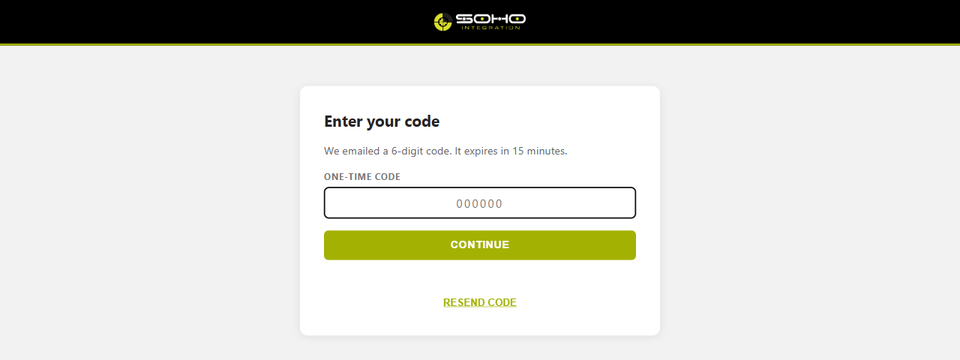
Check your inbox for the 6-digit code and enter it here. It's valid for 15 minutes; if it expires, just click Resend code for a new one.
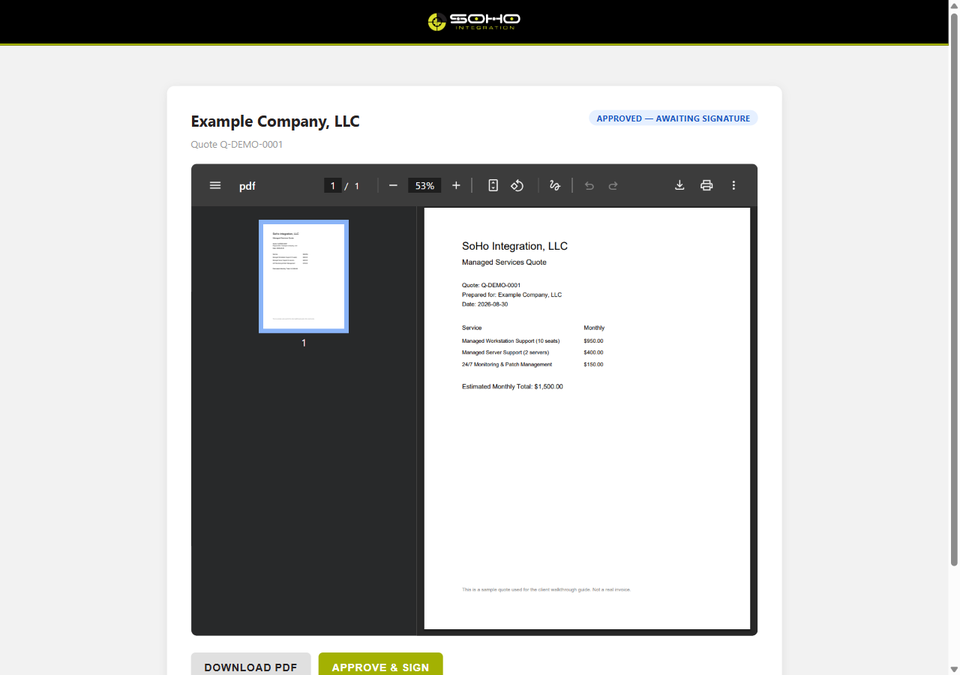
Your proposal loads right in the page, no download required. Scroll through it like any PDF, or click Download PDF to save a copy. When you're ready, click Approve & Sign.
You're taken to our secure signing partner, Documenso, where the quote and our Master Service Agreement are ready to sign together, in one session. No account or password needed on your end. The agreement already carries its start date and our signature.
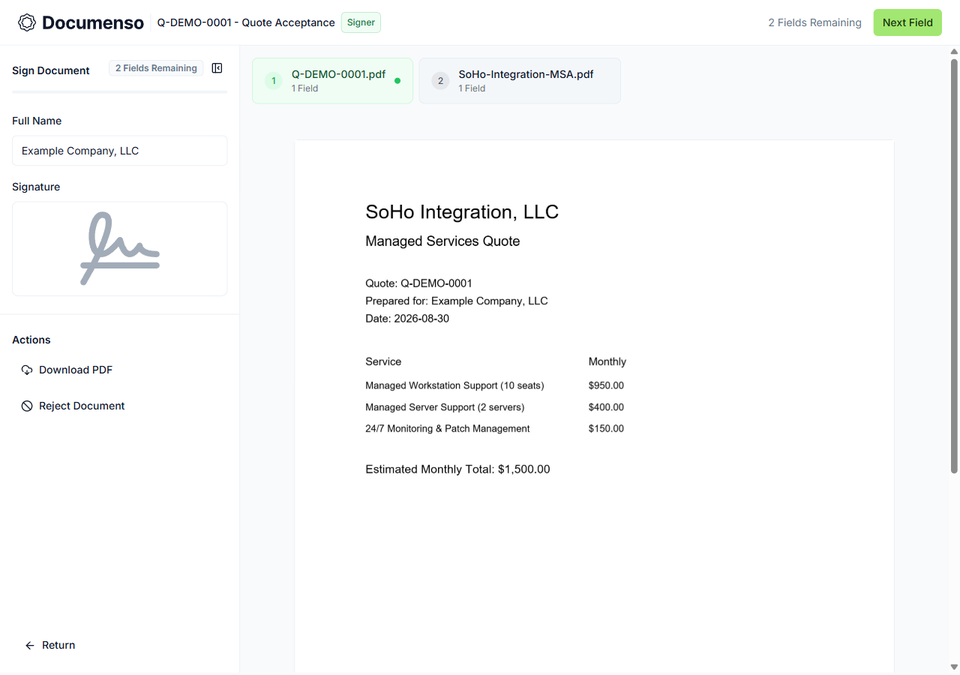
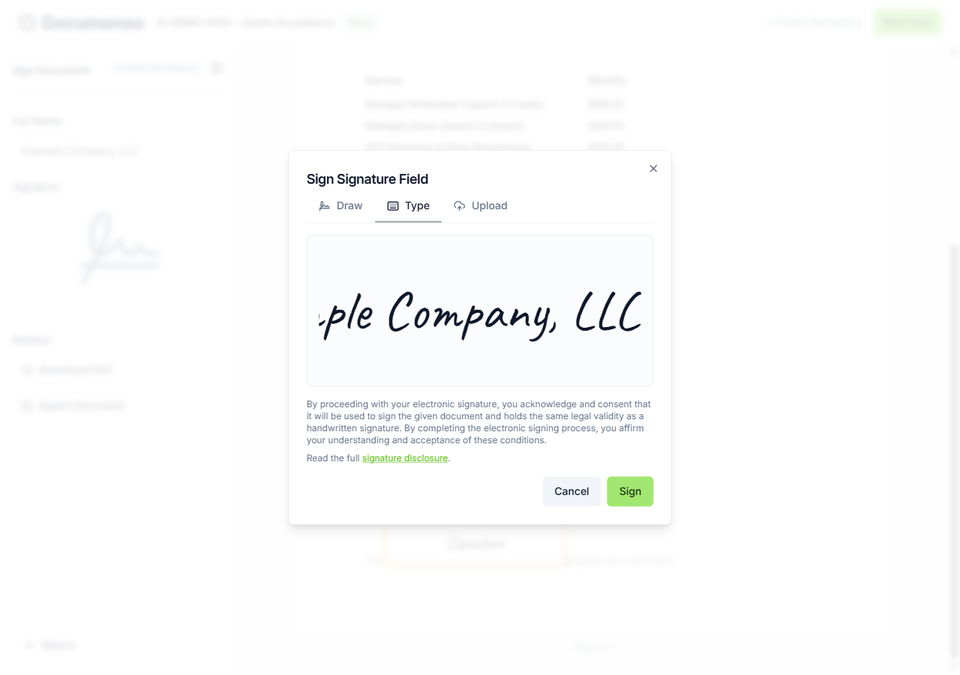
Click a signature field, then either draw your signature or type your name for a generated signature.
The Master Service Agreement also asks you for three short details: your company's full legal name and office address on page 1, and on page 10 the name of whoever should receive legal notices at your company. Fill those in as you go; Documenso will not let you finish while any of them is blank.
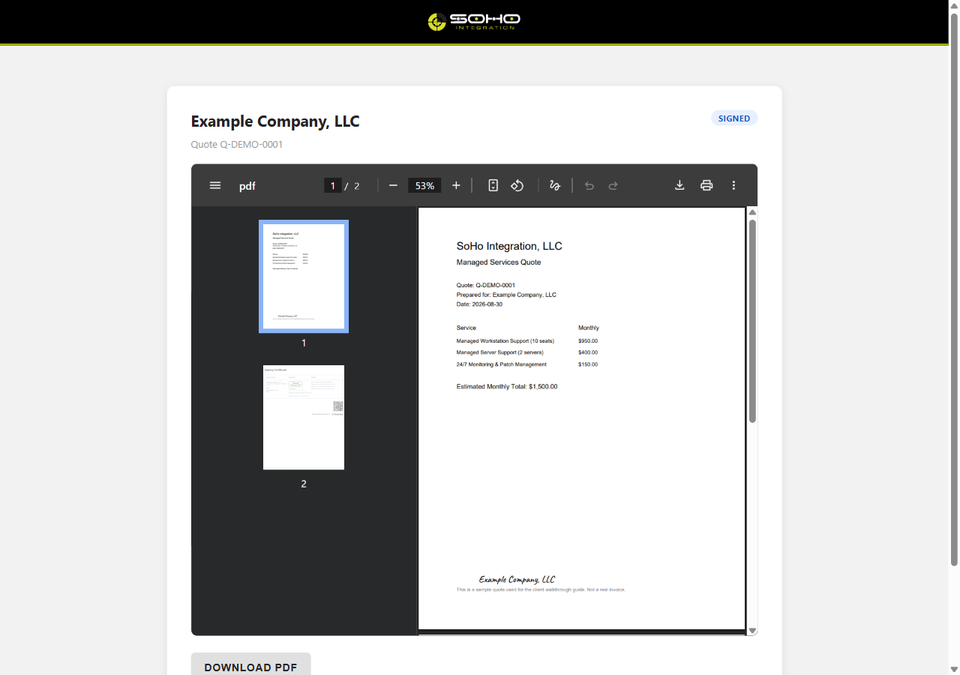
Once every field is signed and you confirm, both documents are sealed. You'll get an emailed copy from Documenso, and the fully executed quote is available any time from this same link.
Check spam/junk first. Click Resend code to try again (codes are limited to a few sends every 15 minutes, so wait a moment between attempts). Still nothing? Reply to the original quote email and we'll help directly.
Quote links are valid for 30 days, and a link is deactivated if the quote is revised or the quote is revoked. Reply to the quote email and we'll send a fresh one.
Yes. The link alone can't open your quote; it also requires the emailed one-time code. Nothing is stored in the page URL, and the signing itself happens on Documenso, a dedicated e-signature platform with the same legal standing as a handwritten signature.
The quote is addressed to the contact on file. If someone else needs to review or sign it, just let us know and we'll update it, rather than forwarding the email or code.
This page covers the review/sign process only. For pricing, scope, or contract questions, reply directly to the email that sent you this link.